Most users should choose an existing blank instead of creating one. Use this page only when no existing calendar blank matches the product you need, or when support asks you to create or edit a blank.
How to Create a Calendar Product Blank
Tutorial Task Flow
This tutorial is organized into sequential tasks, and each task must be completed before proceeding to the next.
Task 1: Set Up a Calendar Product Blank (15 Min)
Task 2: Calendar Designer Template Creator (10 Min)
Task 3: DIY Mask Image Generation (Approx. 5 Min)
Task 4: Creative Assets (If required)
Task 5: Advanced Setup (If required)
Glossary
- Product Blank – A basic product setup to define how a product works in the design & order system before adding visuals or templates.
- Product Code – Unique code for every definition.
- SKU ID – Unique ID assigned to each product/variant in fulfillment.
- Safe Area – Outline in designer showing which part may get cropped.
- Bleed Area – Portion of design extending beyond trim size.
- Trim Area – Space around product where excess is cut.
- Substrate / Attributes – Paper type (Artpaper, Silky, Lustre, etc.).
- Lamination – Protective/enhancing layer added to surface.
- Image Size – Size of the image used in the designer.
- Photo Width – Full designer area size for photo.
- Binding – Page attachment method (imagewrap, stitch, perfect binding).
- Display Mask Image – Overlay mask in designer (.png).
- Clippath Mask Image – Designer mask area for layout.
- Offset Value – Mask positioning in designer.
- Category / Sub Category – Organizing sections for products.
- App Name – Designer type (prints, photobook, calendar, decor).
- Printable Surfaces – Surfaces where design will be applied.
- Output Type – Final file type (JPG/PDF).
- Min / Max Pages – Minimum & maximum page limits.
Steps
1. Login
- Open website link
- Enter valid login details → Click Login
2. Access Product Blanks
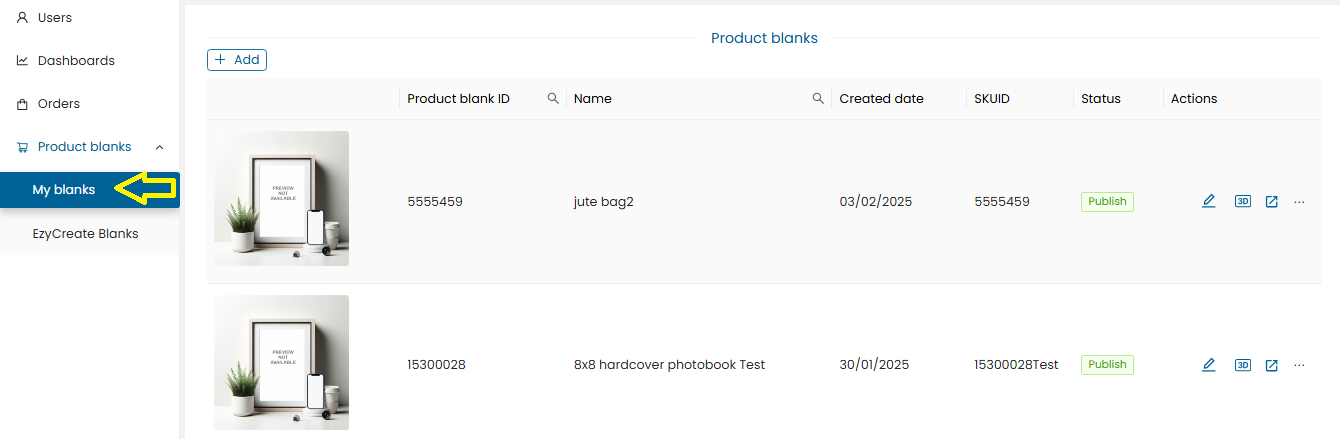
- Click Product blanks → My Blanks . Click on “Product blanks” and then click on My Blanks.
- It will display the list of defined product Blanks.
3. Create New Blank
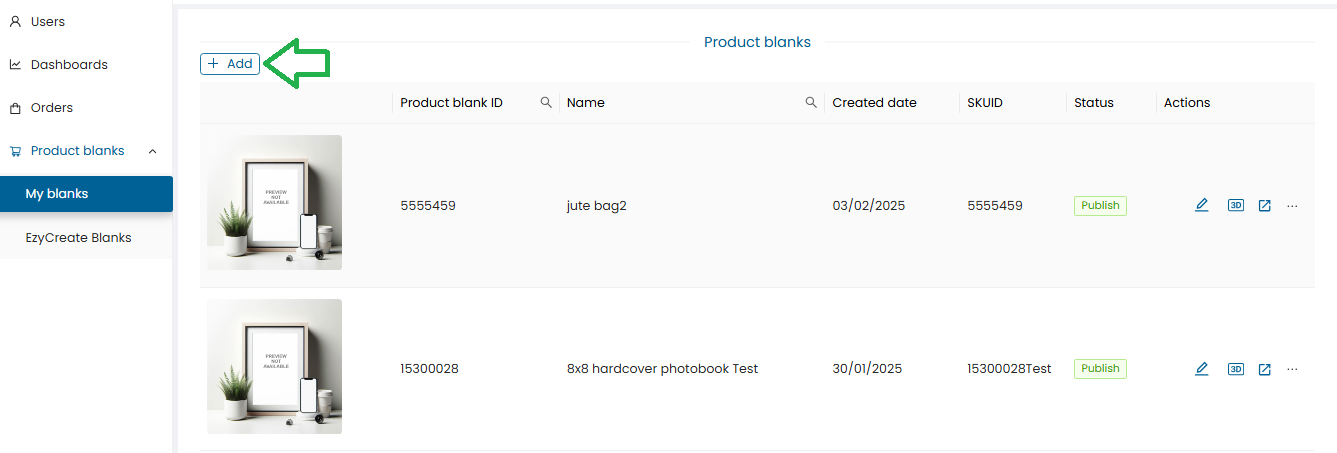
- To create a new product Blank click on the “Add” button.
4. Product Details
-
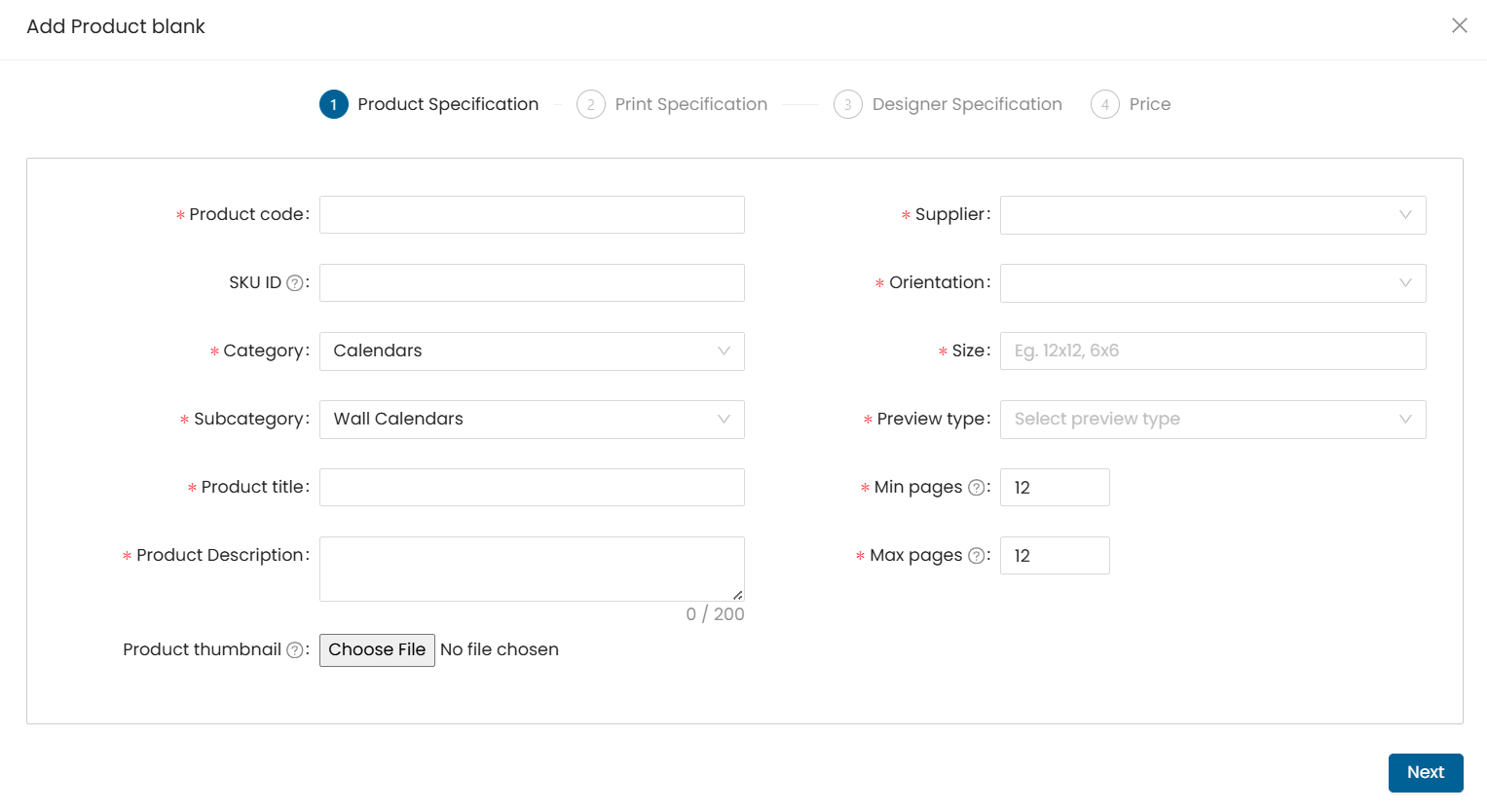
Product Code → Enter unique code
-
SKU ID → Enter SKU id is the same as product code or if it is different then enter accordingly.
A product code, also known as a product number, SKU (Stock Keeping Unit), or UPC (Universal Product Code), is a unique identifier assigned to a particular product or item.
Same as product code (or different if required)
-
Category → Select from dropdown
-
Subcategory → Select from dropdown
-
Title → Enter product title
-
Description → ≤ 200 characters (internal use). Enter Product Description not more than 200 chars. This description is used for internal definition.
-
Thumbnail → select and upload the product thumbnail. (.jpg format only). This thumbnail image will be displayed in EzyAdmin for that Product.
-
Supplier → select the supplier under which the product will be listed.
-
Orientation → select the product orientation- Portrait / Landscape / Square
-
Size → select product size. Eg, 12x12, 6x6 This size is used for internal definition.
-
Preview Type → select the product preview type from the given drop-down.This option is used for internal definition.
Note: Preview needs to be selected as per the product type.
Product & Preview Type
Photobooks 3D
Mini book 2D
Calendar 2D
Canvas Prints 3D
Mounted Prints 3D
Frames 3D
Mug 3D
Prints Image
- Min Pages / Max Pages → e.g., Calendar = 12 min & max
Click Next
5. Output & Surfaces
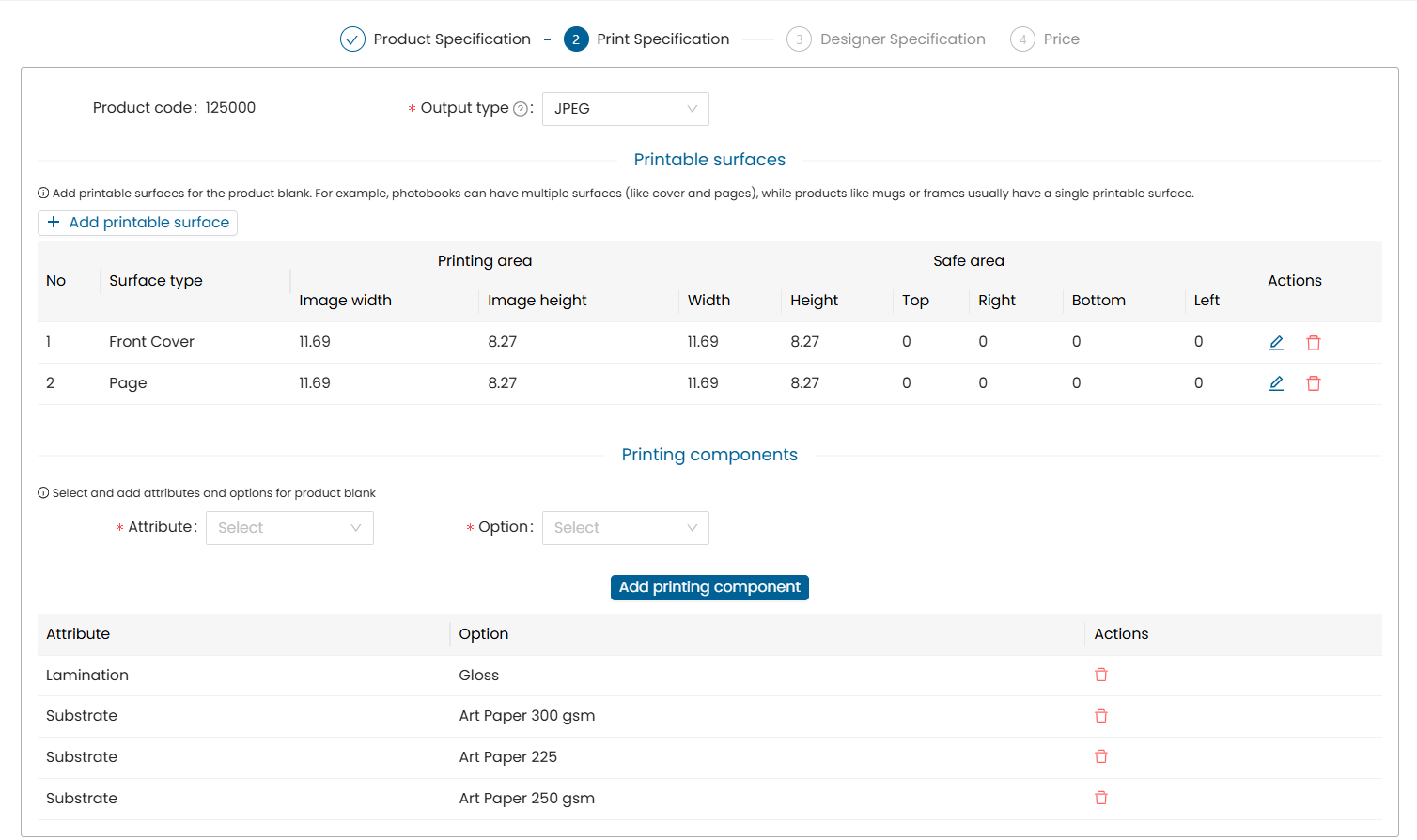
- Output Type → select the output type for the product ie. .JPG / PDF
- Click Add printable surfaces
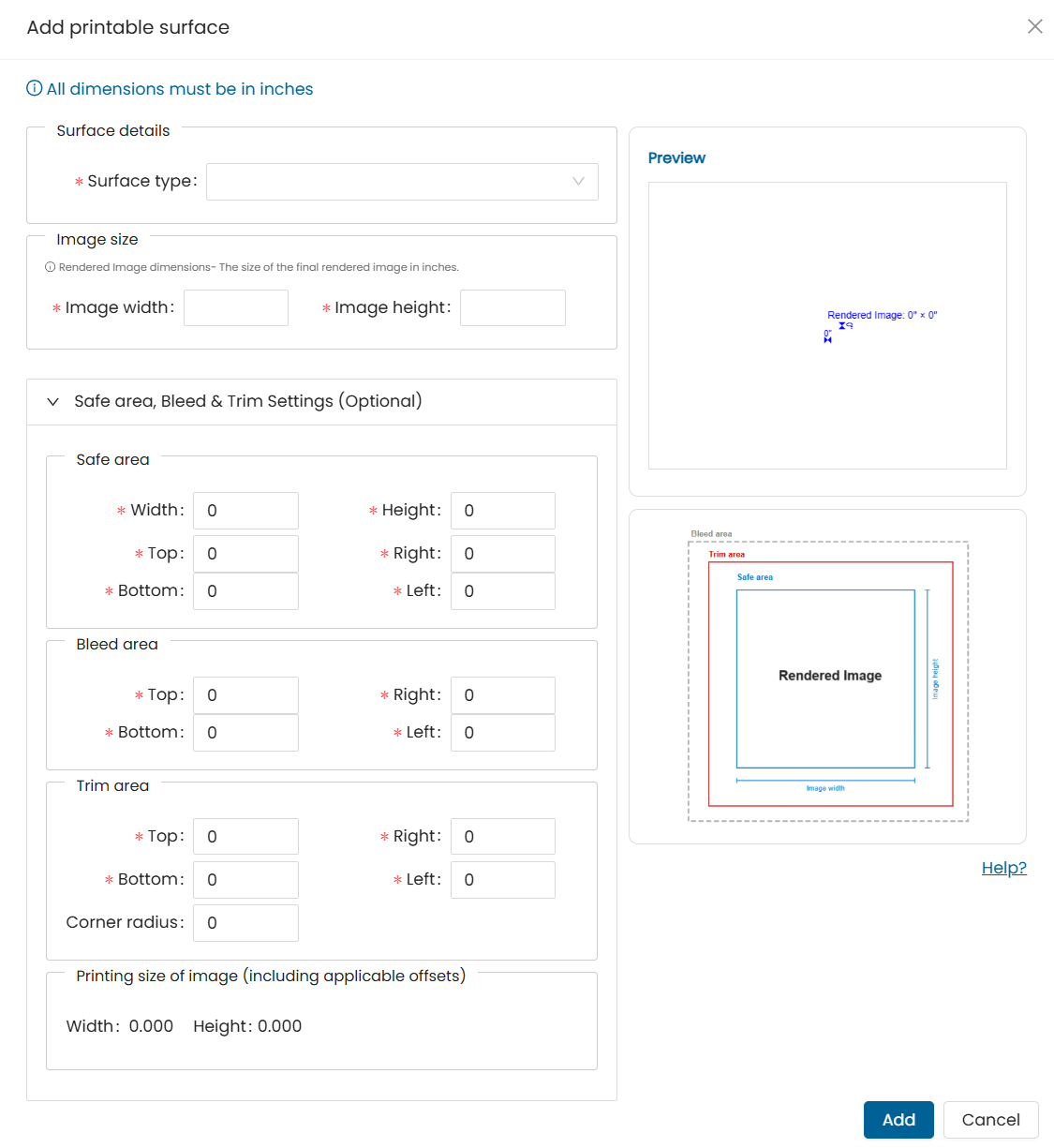
-
Surface Type → Select surface type: from the given drop-down. For eg. a calendar will have a cover page surface and inner pages surfaces.
Note : All specs and sizes to be entered are in inches.
-
Image size Enter image size specs .This image size is the printable image size of the product. Printable output image size.
*Note : under Image size : as per the image width & height is entered and photo width & height the photo holder will be displayed in the designer.*
-
for product config : specs of : image width & height, photo width & height and the mask offsets specs are compulsory
-
Safe area : Enter Safe area specs.
-
Bleed area : Enter Bleed area specs. The bleed is the area to be trimmed off.
The bleed exists to prevent the possibility of a small white gap at the edge of the finished job where a design object is required to go all the way to the edge of the paper.
-
Trim area : Enter Trim area specs. (corner radius to be entered only in case if the product has rounded corners on the design area) eg. magnet product having rounded corners.
-
Click Add button to save the entered details
6. Printing Components

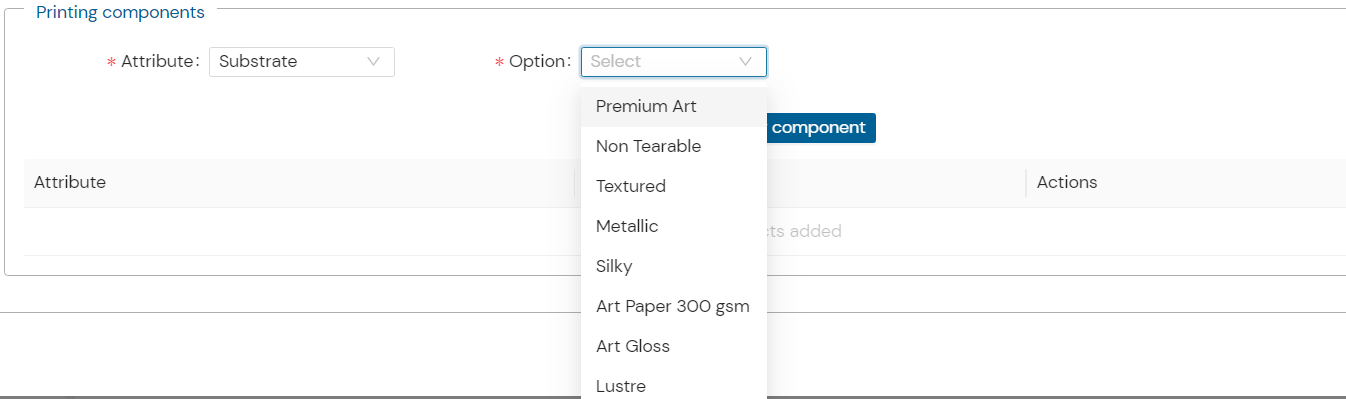
- under printing components, add substrate, Lamination, binding, cover etc for the product.
- If there is a new substrate/lamination to be added in the list,then it has to be defined under the admin module under Attributes->laminations.
- How to Add a Attributes & Attribute Options
- Under options : select and set an option as per the substrate/lamination etc selected. Eg. if ‘artpaper’ substrates is selected then the lamination type ie. ‘matte’/’gloss’ applicable is also to be set.
7. Designer Specs
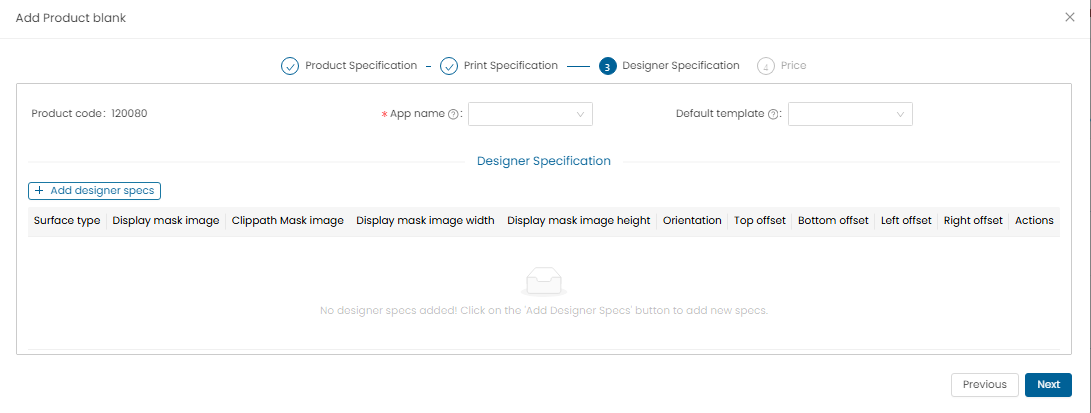
Please note designer specs need to be in inches.
- Select “App name” from the drop-down for example. for the multipage calendar type products, the app name is “EzyCalendar”. According to this selection the product will open in that respective designer.
- Default template : select from the drop down if you want to setup a customized template (Template created through template creator) as default template or keep it as none.
- To add the designer specs click on the “Add designer specs” button.
Add Designer Specs:
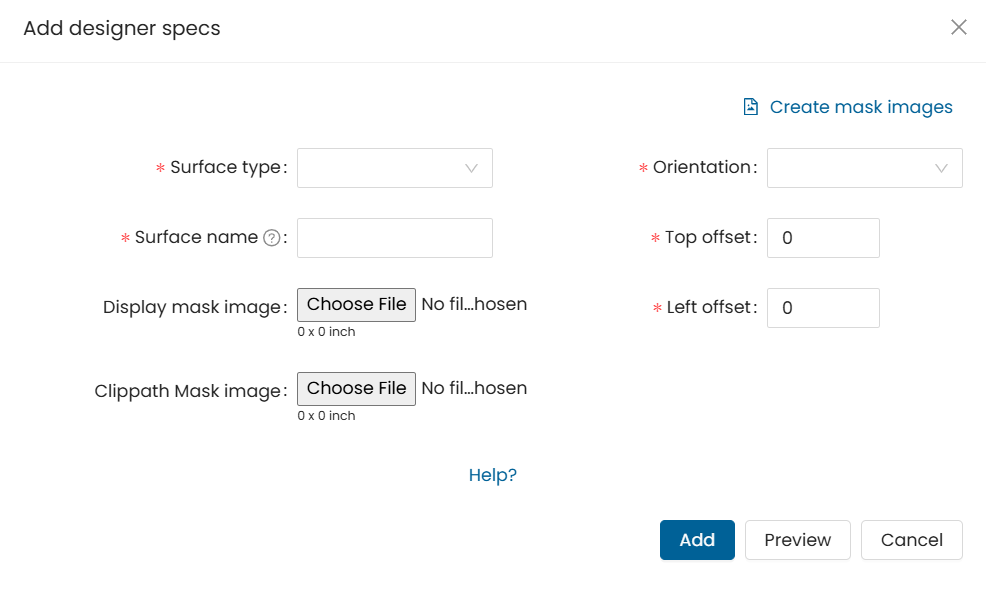
- Surface Type : Select the surface type from the drop-down for which the mask and specs will be added.
- Surface name : Enter a surface name based on the surface type selected.
- Display mask image : Select and upload the Display mask image of the product.
Note :
- The mask image file format should be in .png
- To display a product in the designer we require 2 images so one is Display mask image and other is clippath mask image.
- The product specs and both the mask images specs need to be maintained the same.
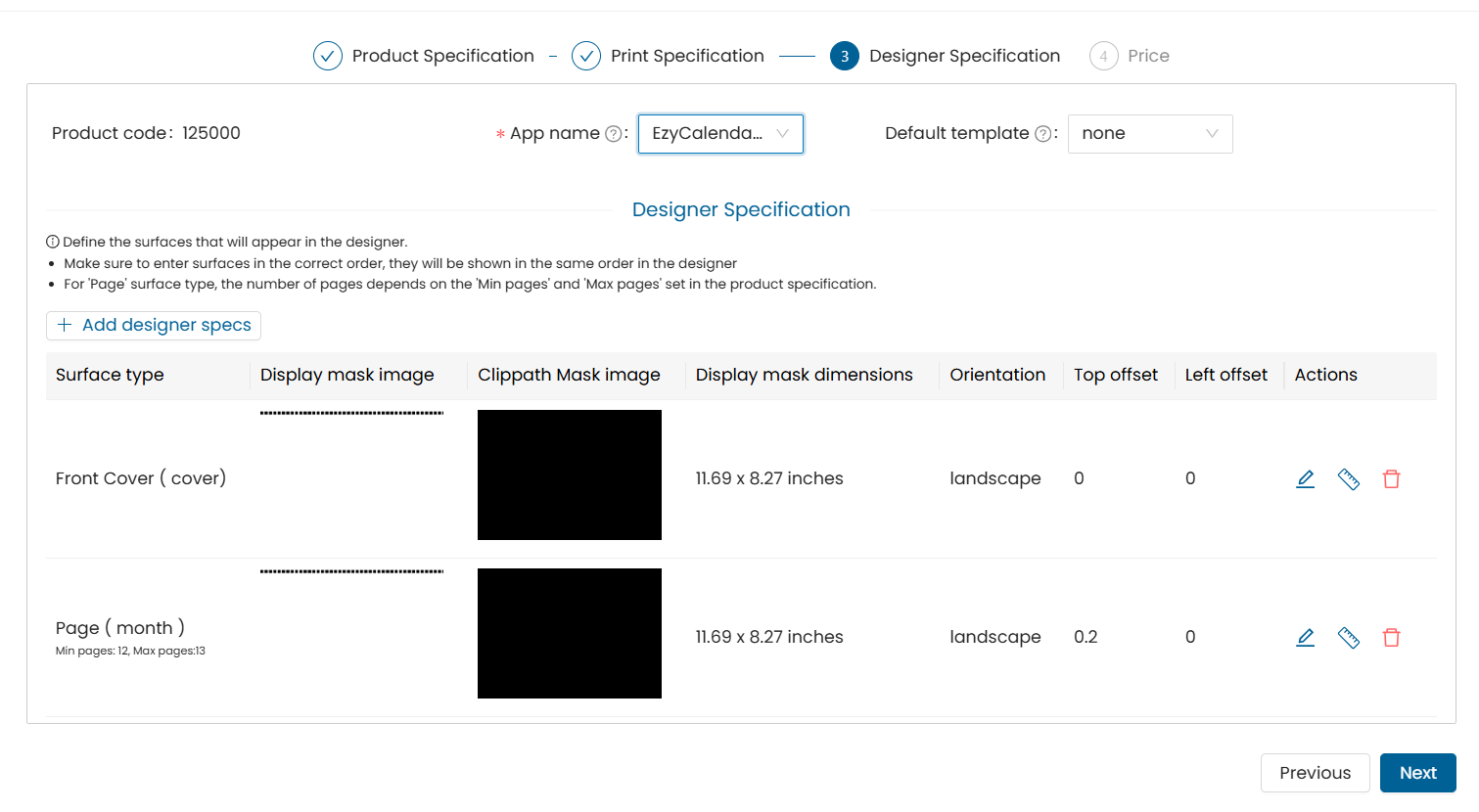
- Display mask image width : Enter Display mask image width in inches.
- Display mask image height : Enter Display mask image height in inches.
- There is no recommended size as such as it is dependent on the product specs.
- Orientation : select orientation for the added images as per the uploaded mask.
- Enter Mask offsets (in inches) : Top offset, Left offset . Offset - this is for the additional properties of the mask to be set in terms of the offsets.
- Preview : you can click on the preview button to view the added mask image preview display.
- Once all the required details are entered then to save these details click on the “Add” button.
- Click the “Next” button to go to the Pricing Section
Click Add → Next (Pricing Section)
8. Pricing
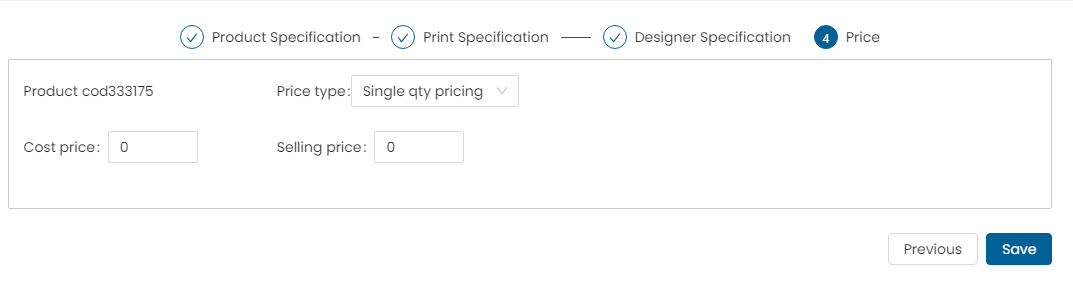
Price type : Select Price type as single qty pricing.
- Enter Cost price & Selling price values.
- Click on the add price button to save the details.
- Click on save button to save the add product form.
Price type : Select Price type as Volume Pricing.
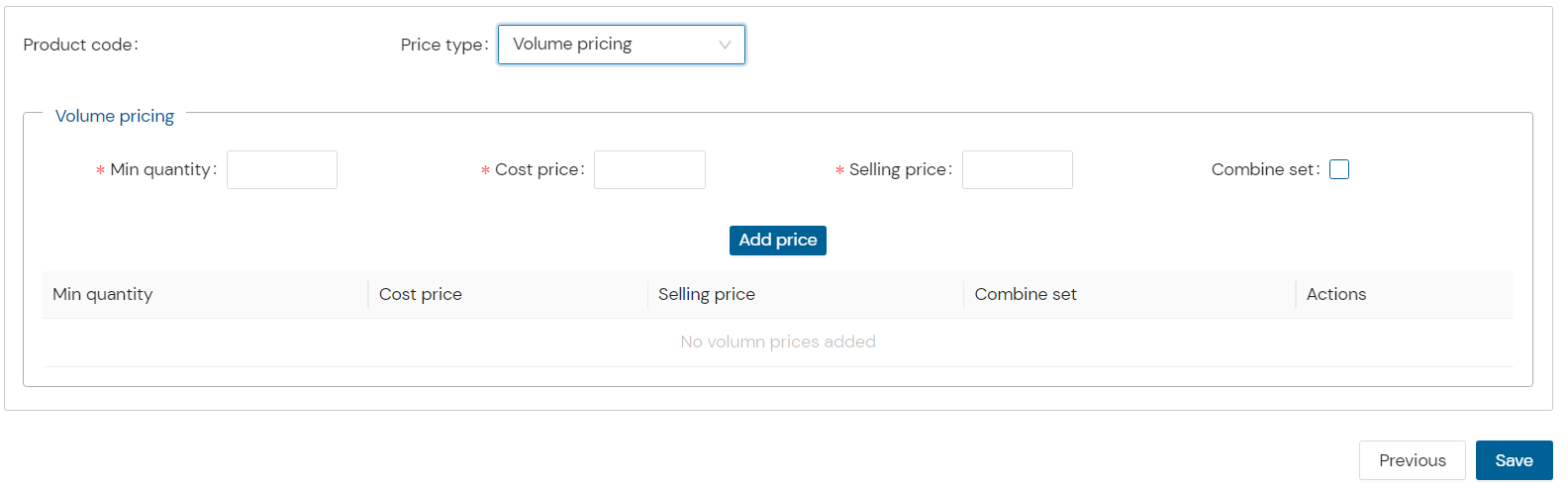
Note : in case of product to be ordered in bulk quantities the volume pricing option to be added.
- Min quantity : enter min quantity.
- Cost price : enter Cost price & Selling price
- Combine set : select the checkbox if the quantity sets are to be combined
- Click on the add price button to save the details.
- Click on save button to save the add product form.
Price type : Select Price type as Attribute level pricing
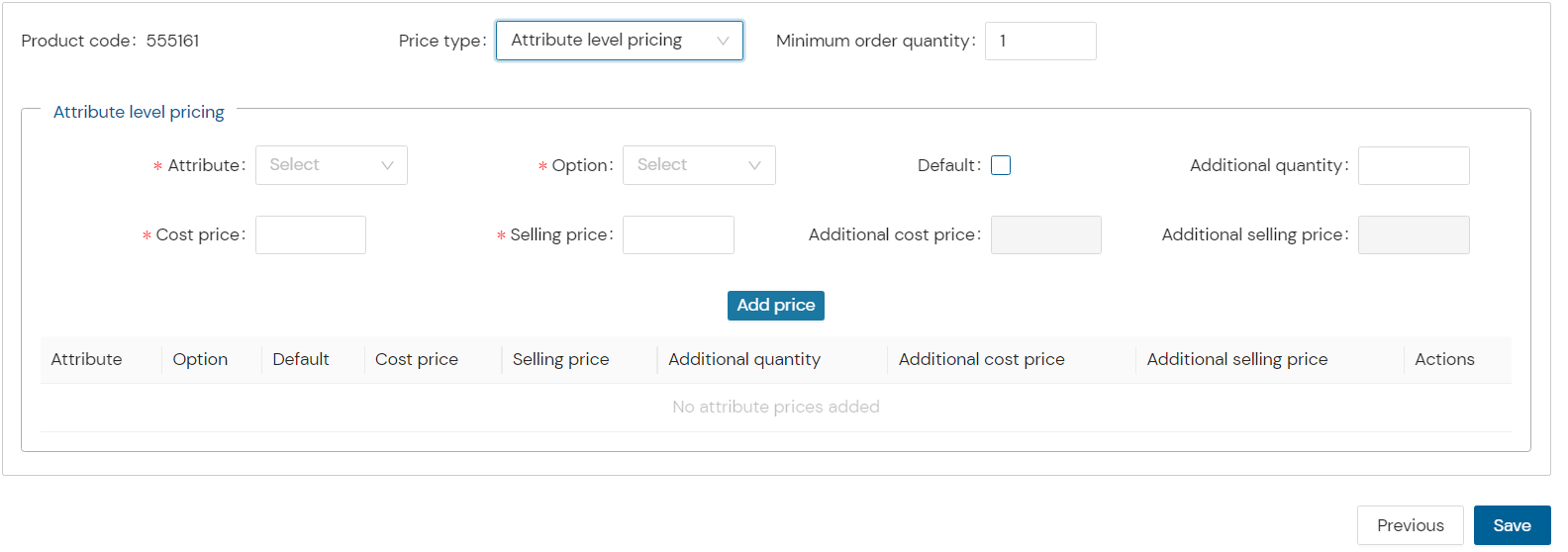
Note : in case of a product where multiple attributes to be set the attribute level pricing can be used.
- Any surface or material on which printing is done. Art paper, Synthetic Paper, Metal, Acrylic
- Select & set pricing for each attribute individually.
- Click on the add price button to save the details.
- Click on save button to save the add product form.
*Note: a product having no attribute for such a product you'll can use single qty pricing. volume pricing is used for a product having min order qty. or to be ordered in bulk. product having multiple attributes with pricing as per the attribute selected. In this case attribute pricing will be used.*
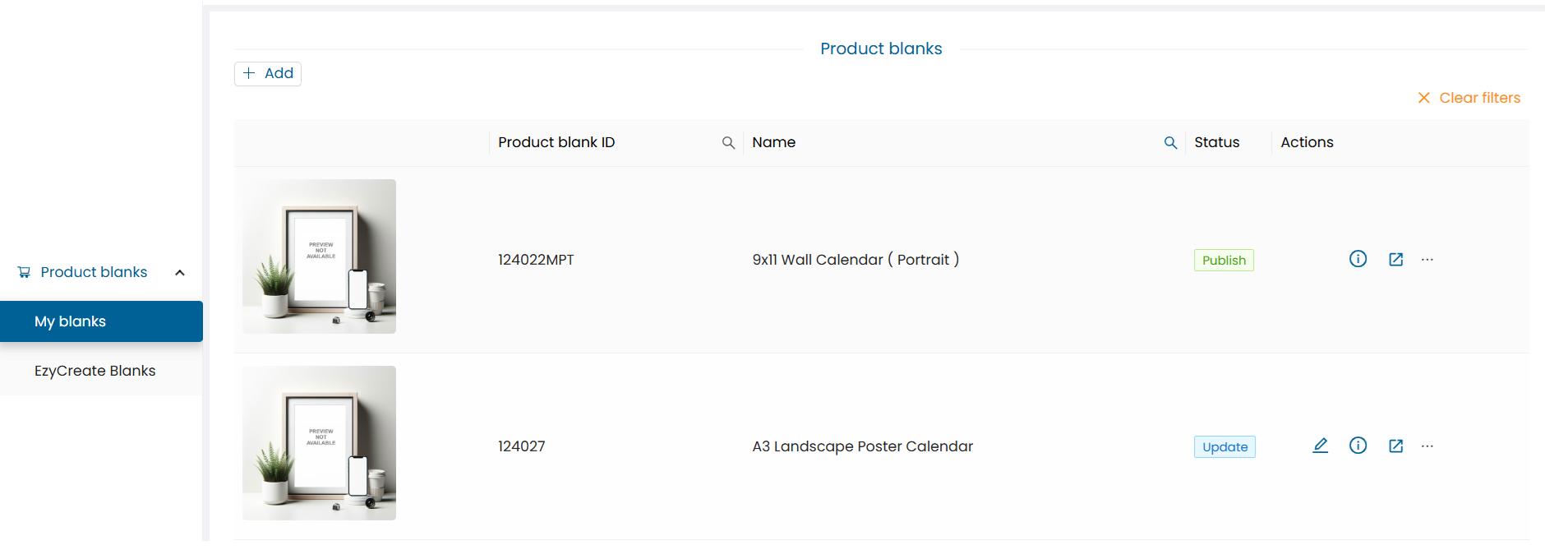
- Once the product is saved, open the product wizard list and it will display the created product.
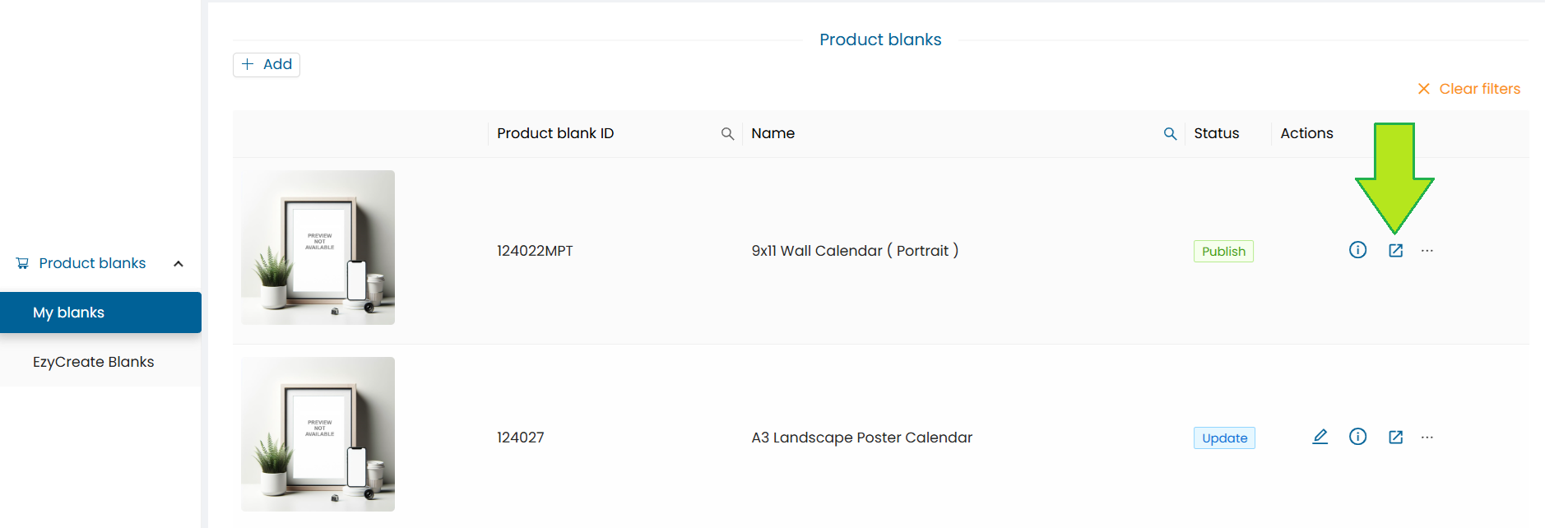
- Click on the “View in designer” button to preview the created product in the designer.
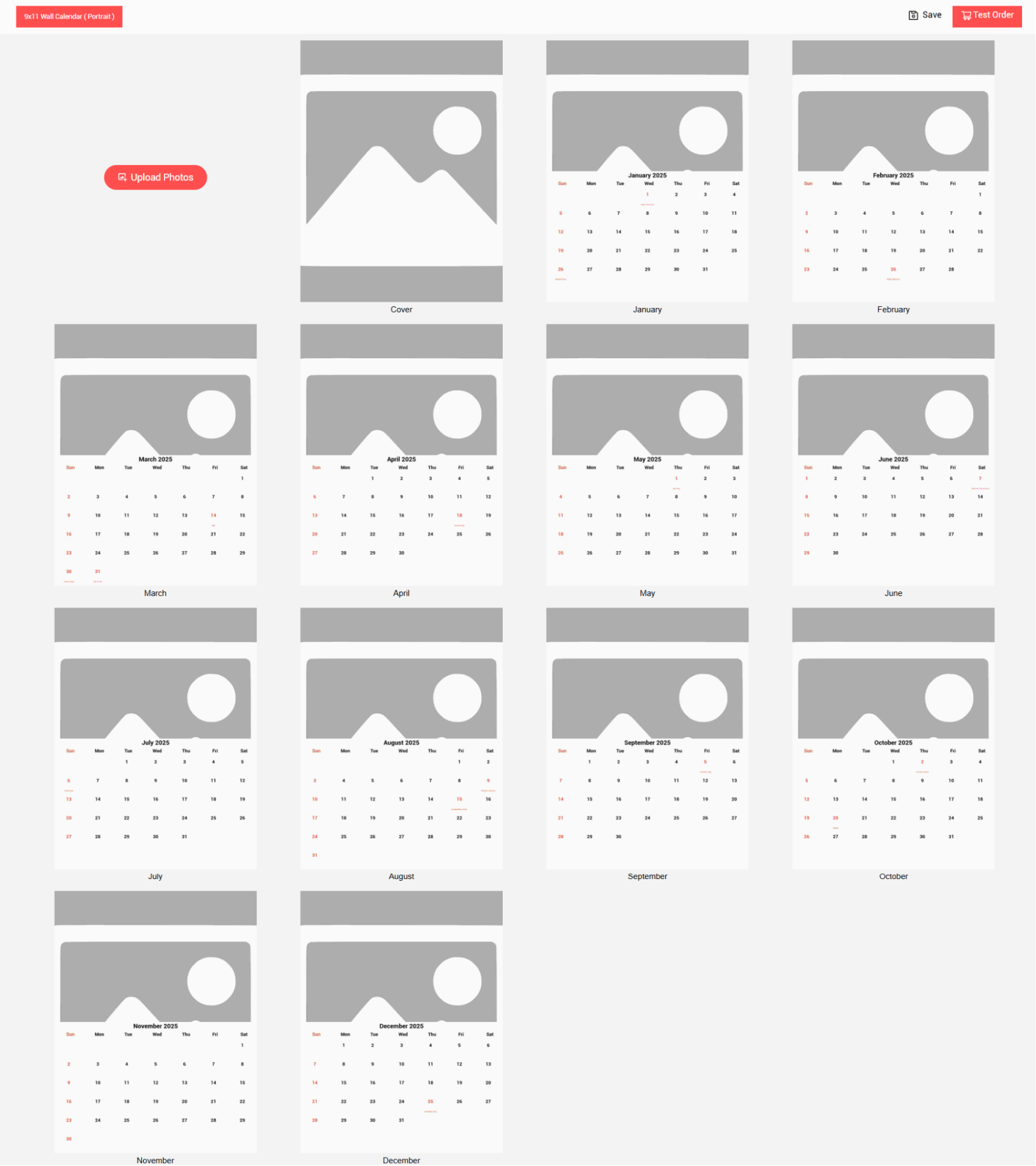
- The designer will open the defined product. Click on the upload photos button.
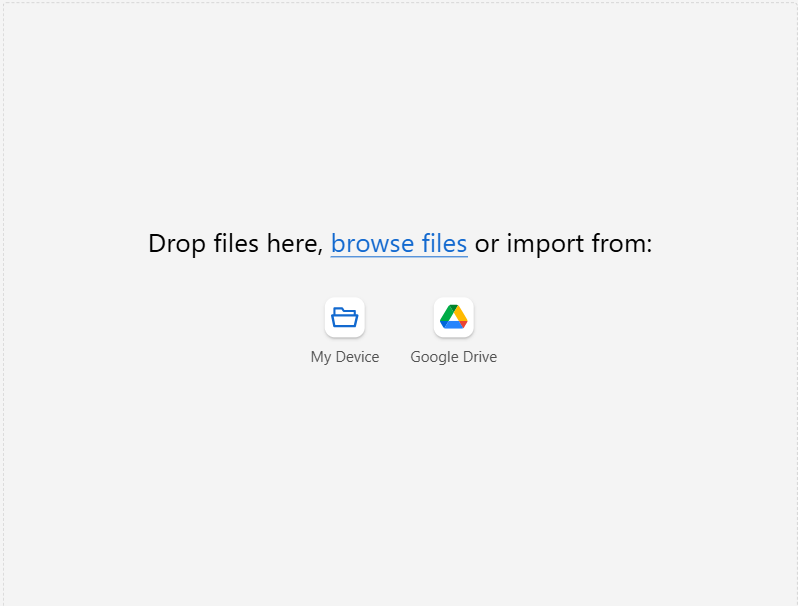
- The upload photo pop-up will be displayed.
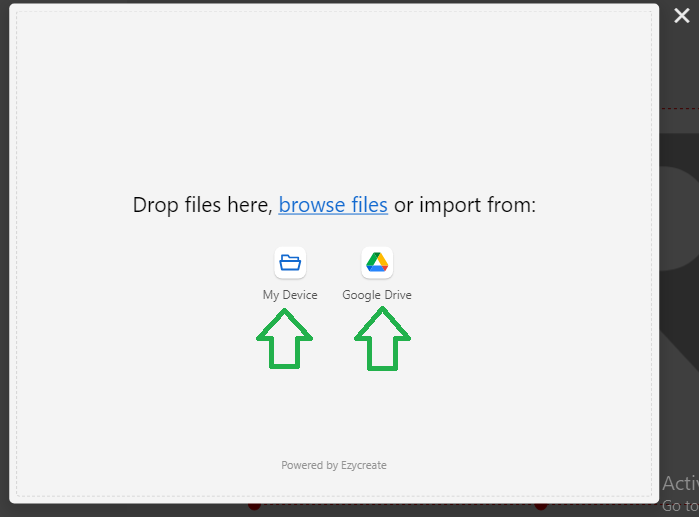
- Click to select files or drag and drop photos onto the uploader.
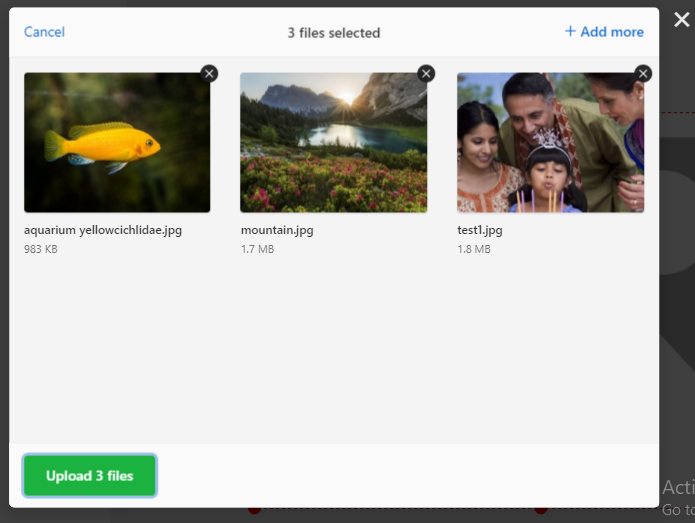
- Click on upload button to upload the added photos
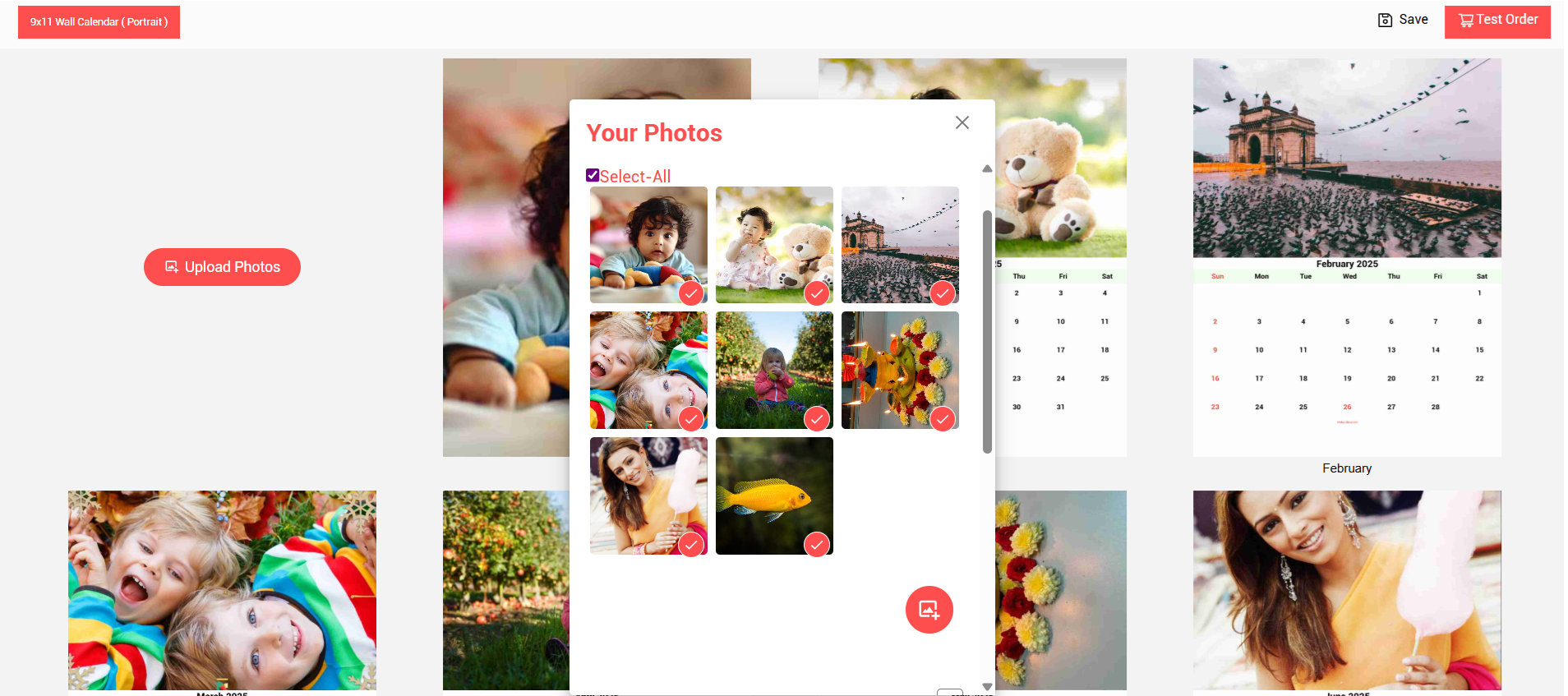
- Once the photos are uploaded, click on the photo to add it to the designer.
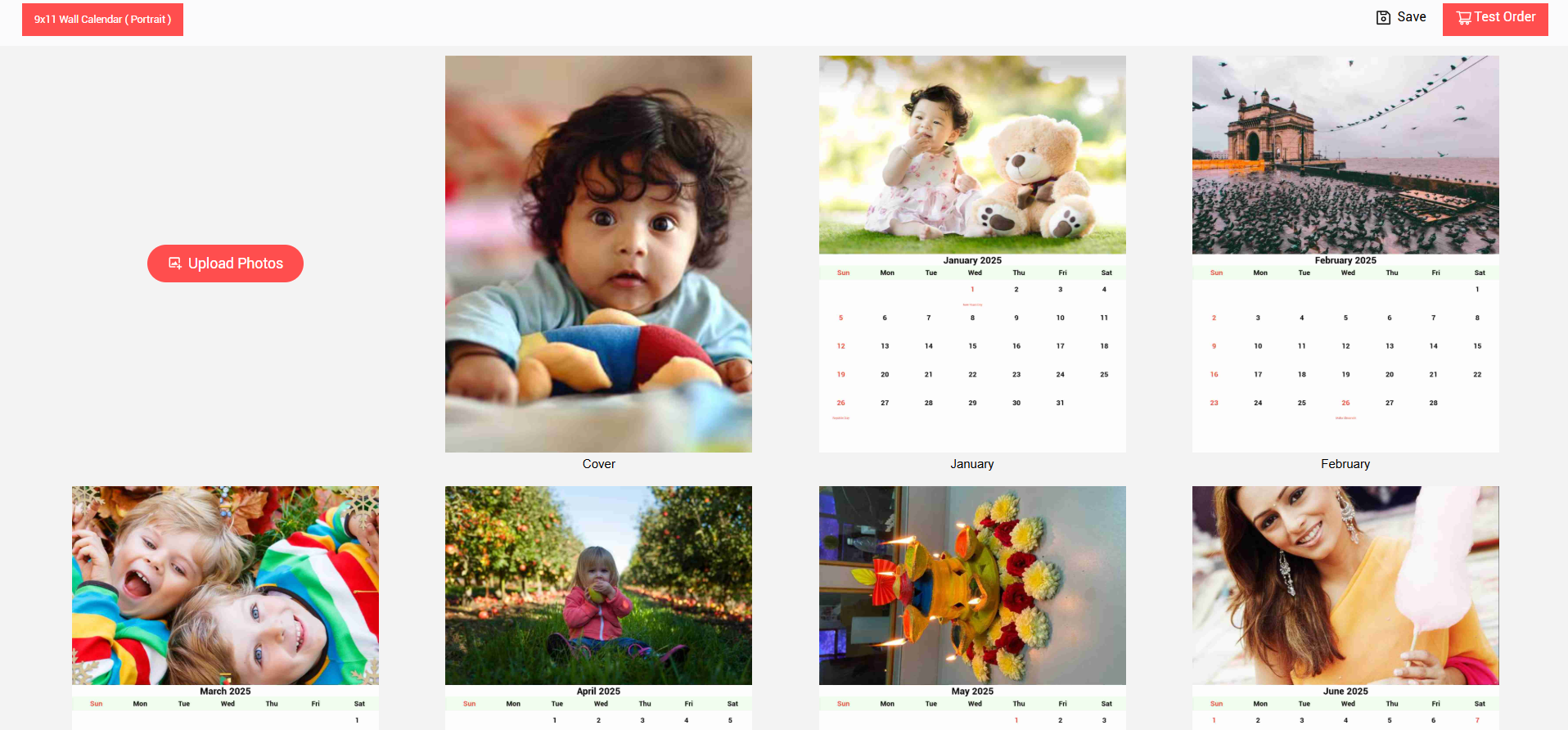
- Photo preview will be displayed, now click on the photo to edit
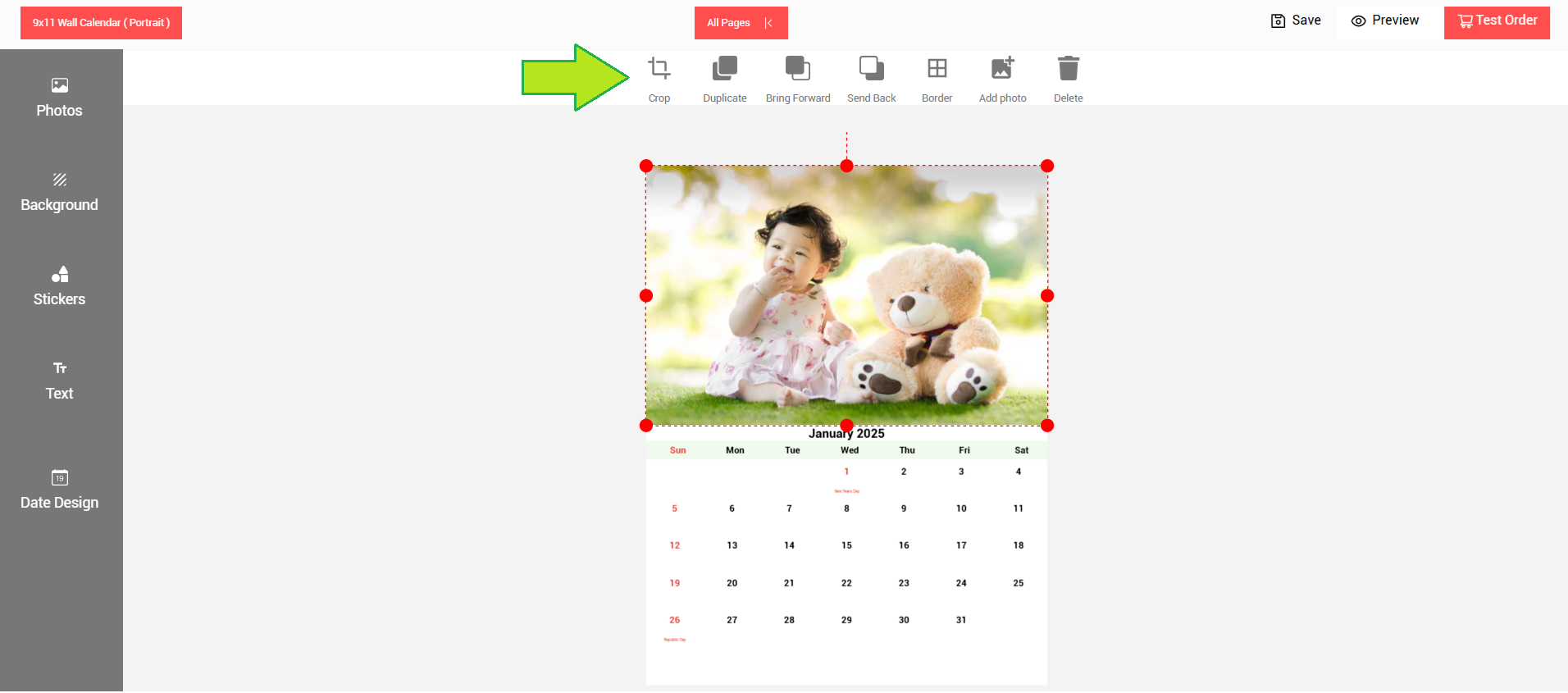
- The photo edit menu will be displayed.
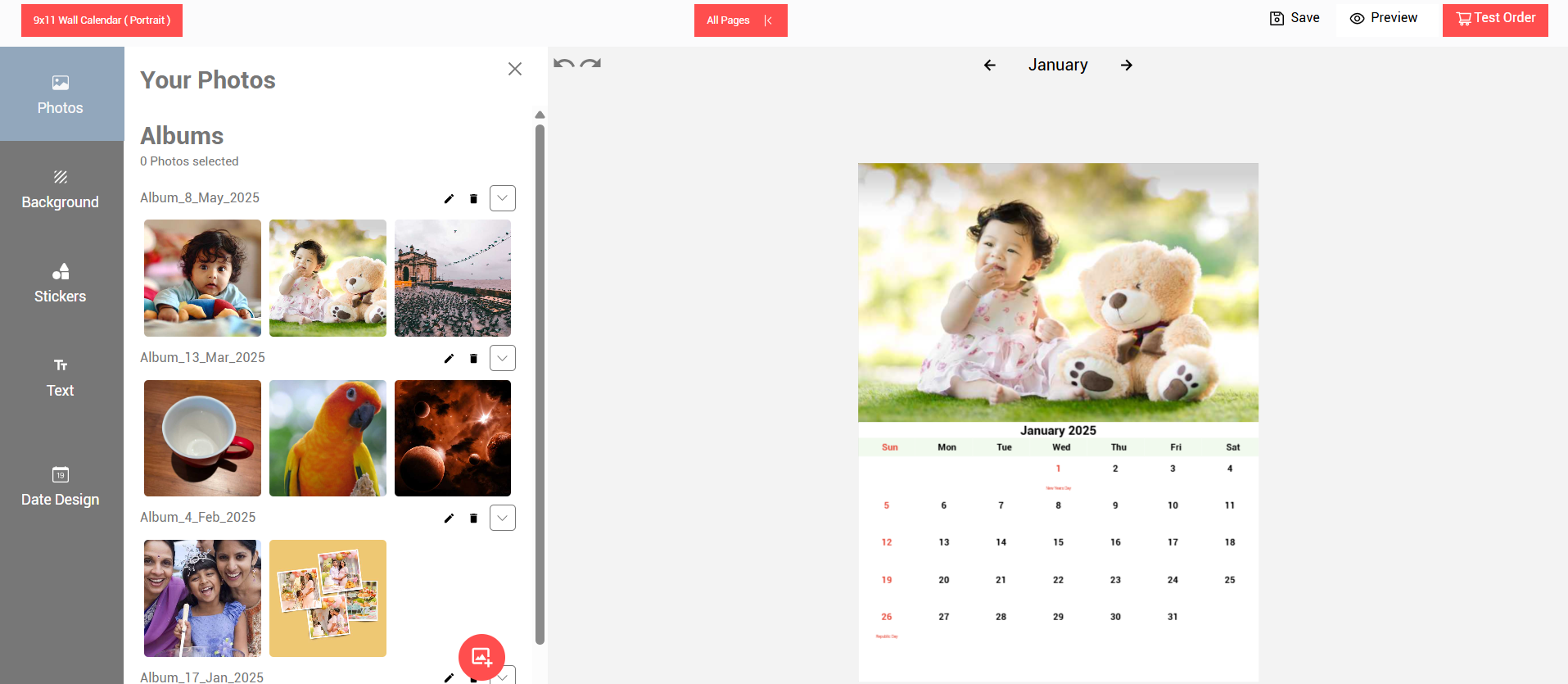
- To add photos, click on the photos tab and select photos from the added albums.
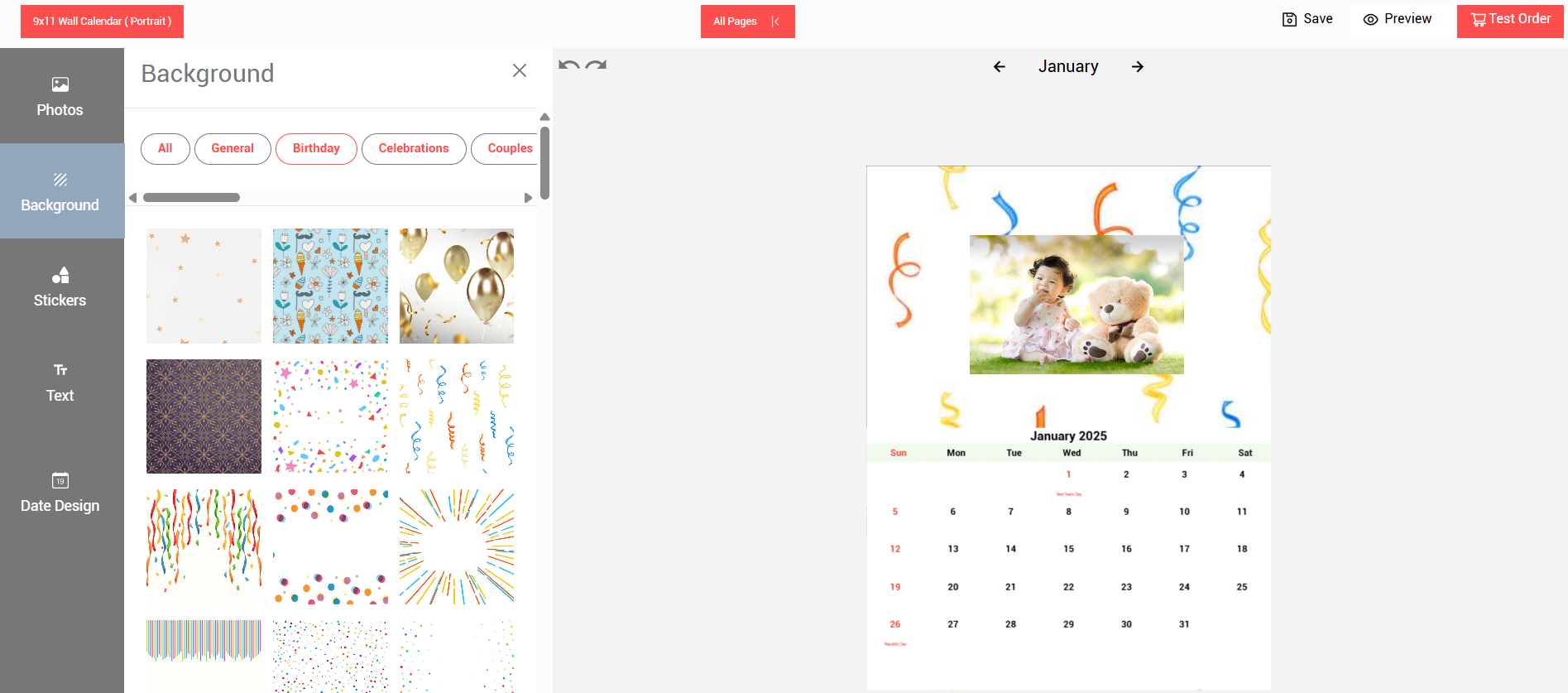
- To add Backgrounds, click on the backgrounds tab and select and add backgrounds from the available categories
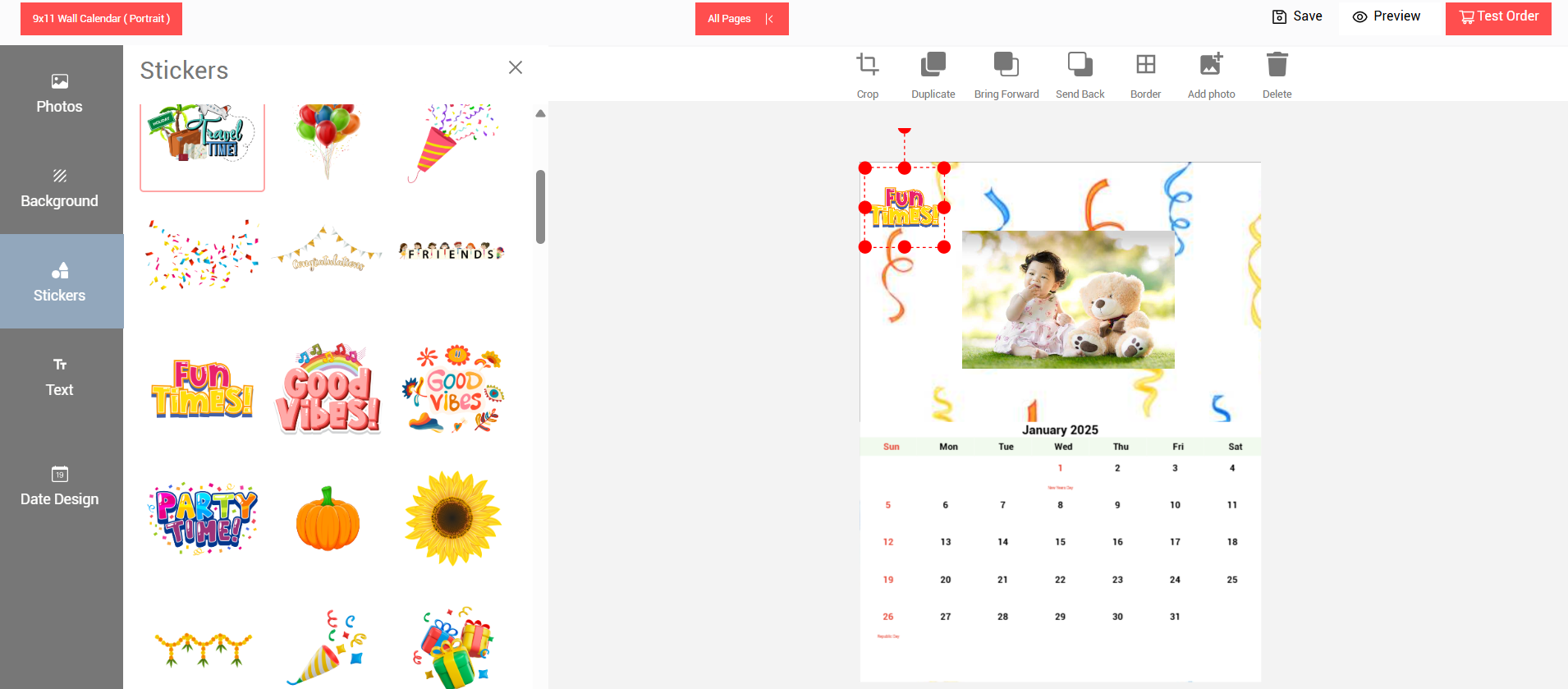
- To add Stickers, click on the stickers tab and select and add stickers from the available categories.
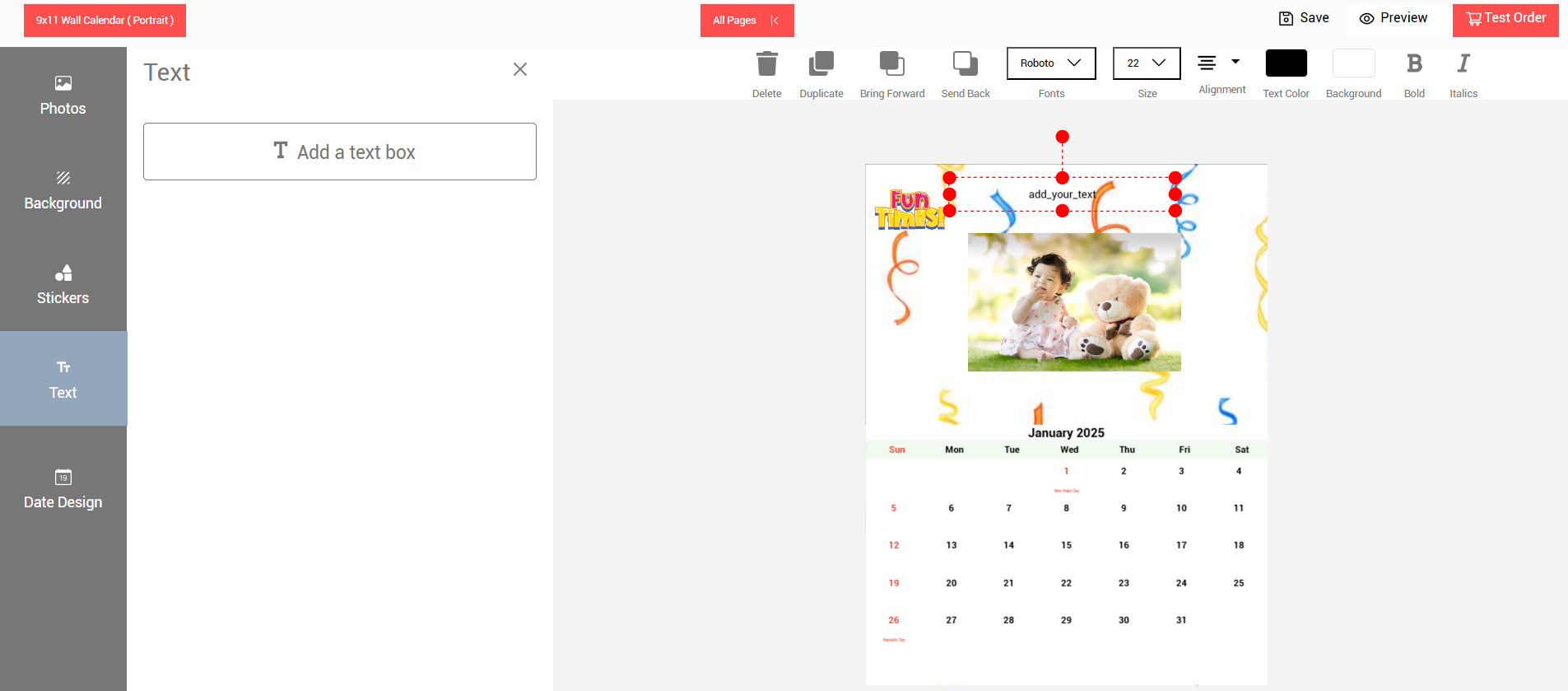
- To add Text, click on the text tab and click on the “Add a text box” option to add a text field.
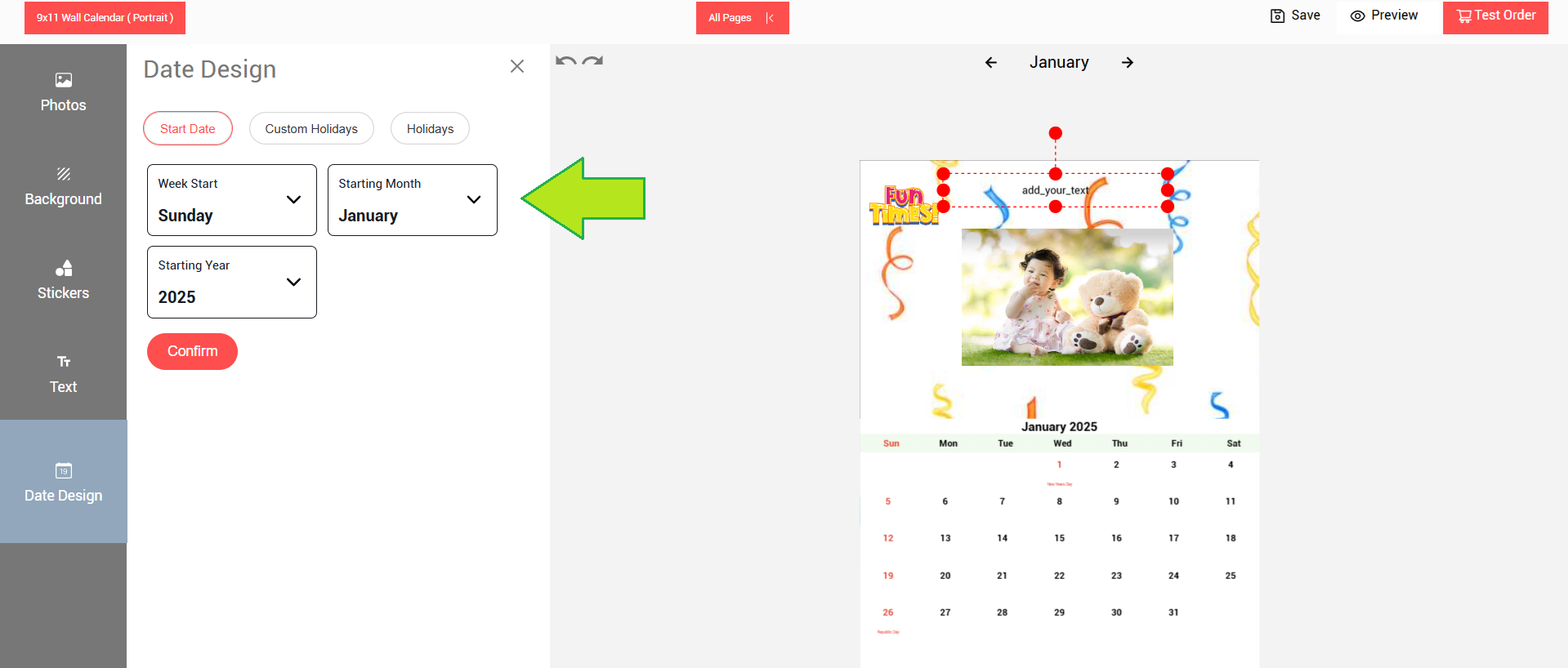
- Select and set the “Start Date” options and click on confirm to apply the settings.
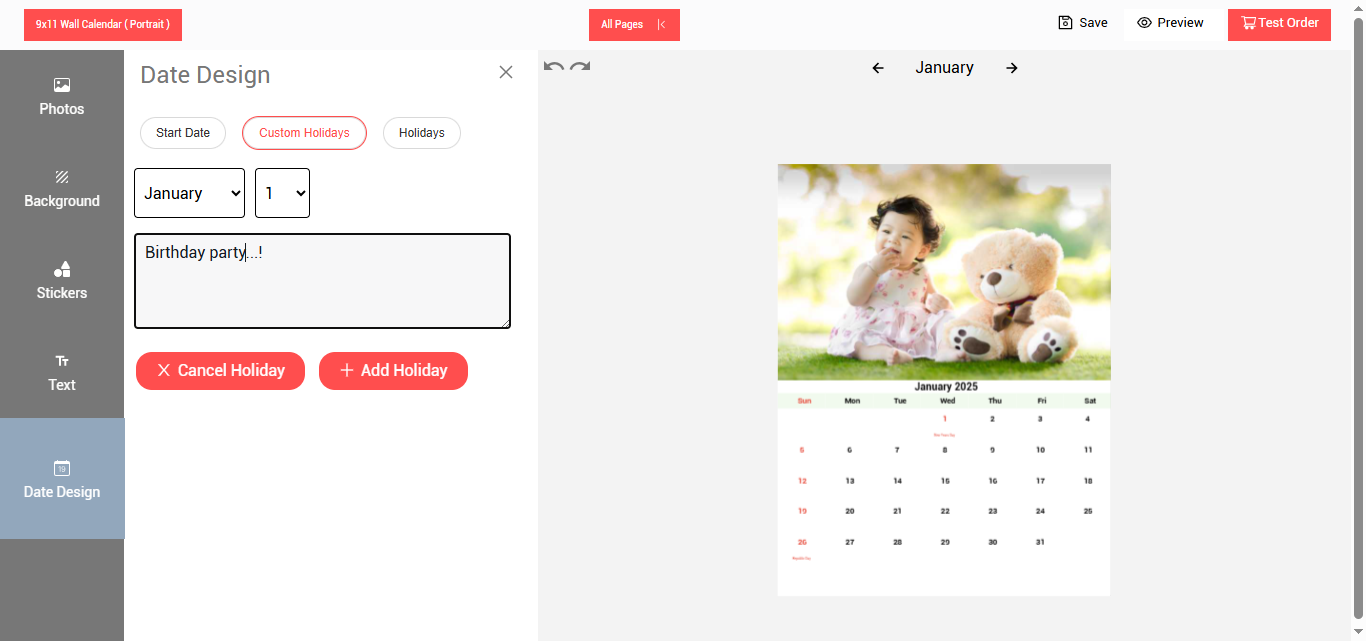
- Select and set any “Custom Holidays” and click on the “+Add Holiday” button to apply the changes.
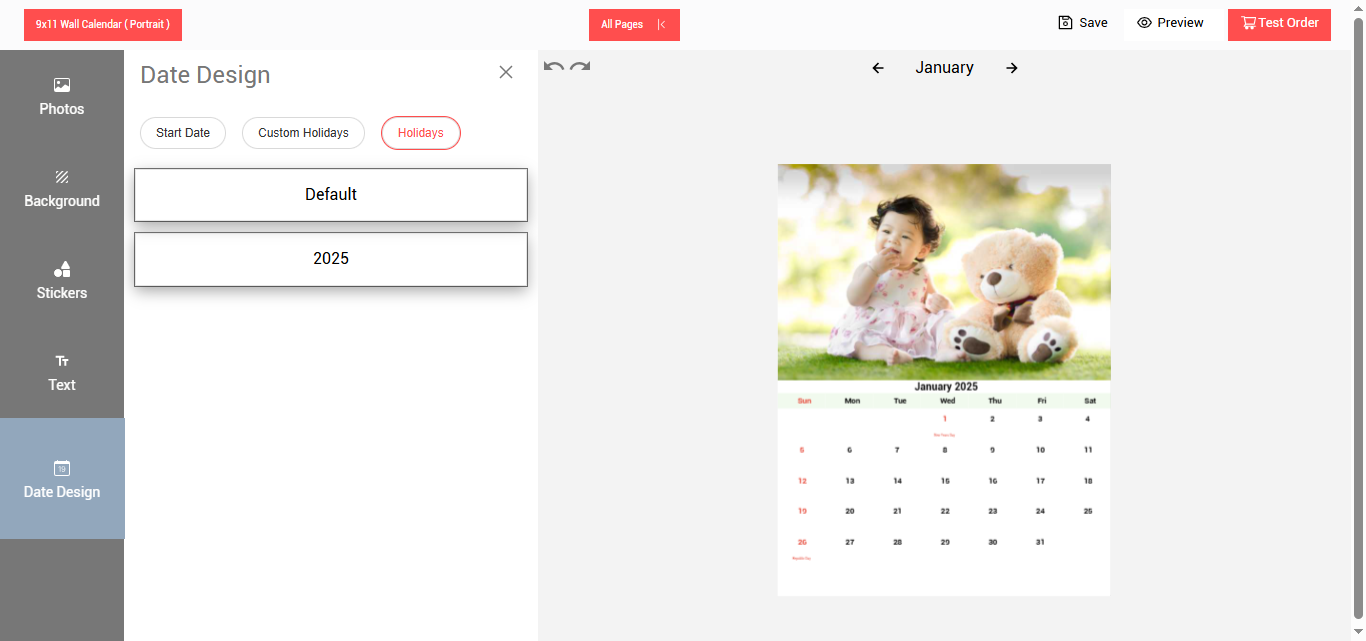
- You can check the list of holidays. Once the editing is done then click on the test order button.
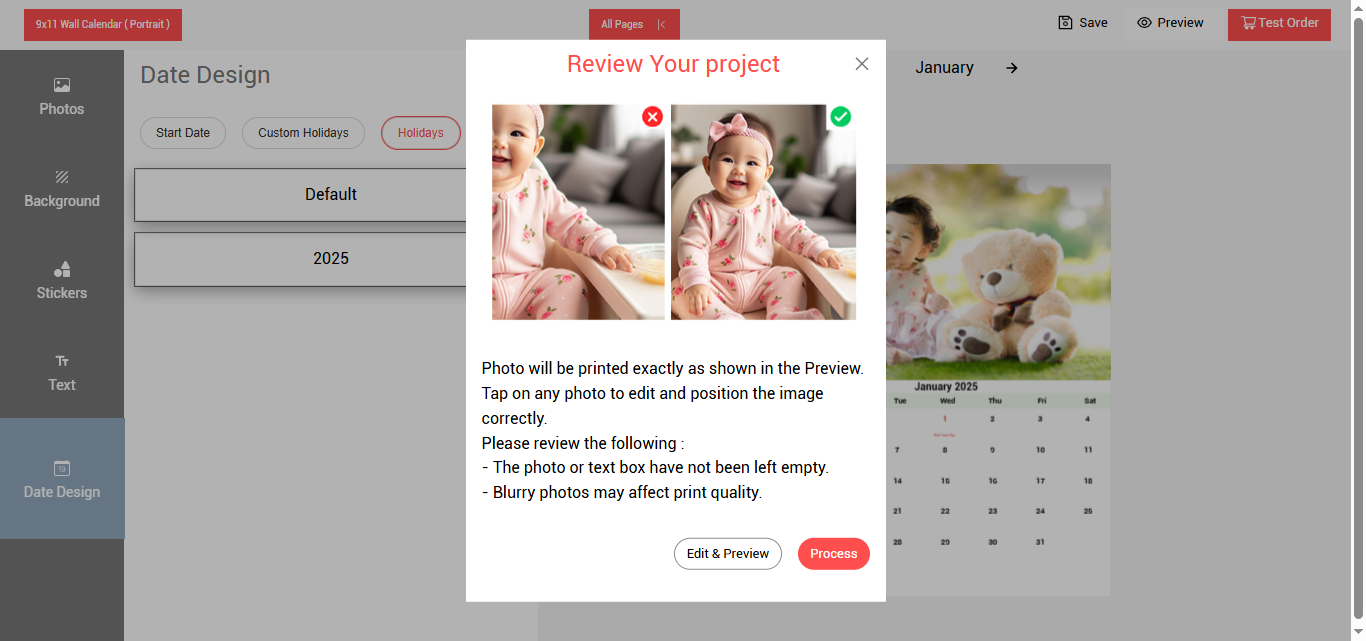
- Click on the process button to continue.
- Will display a message as “Order placed successfully”.
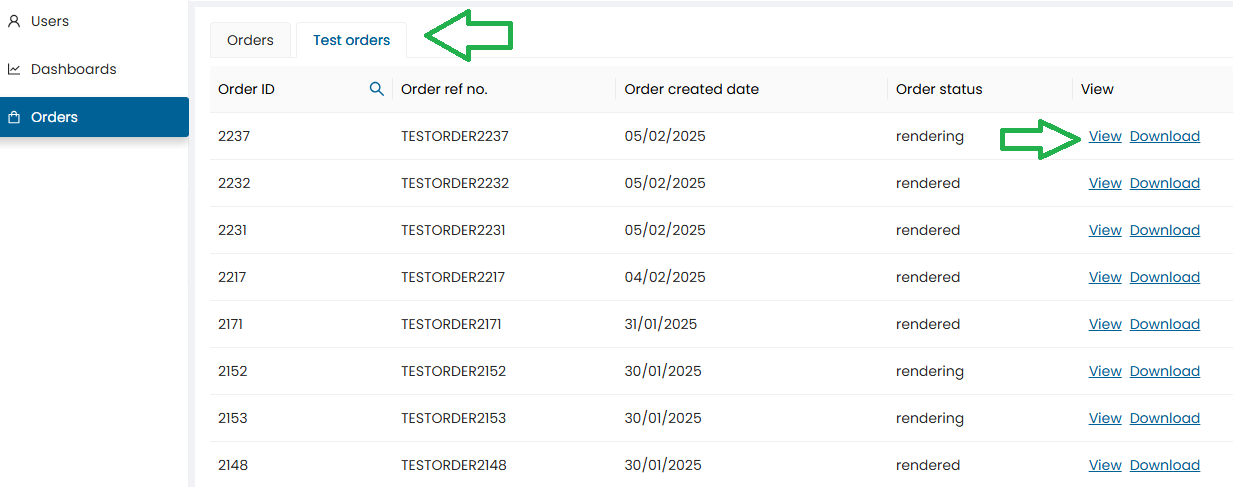
- The order tab will open displaying the recent order placed
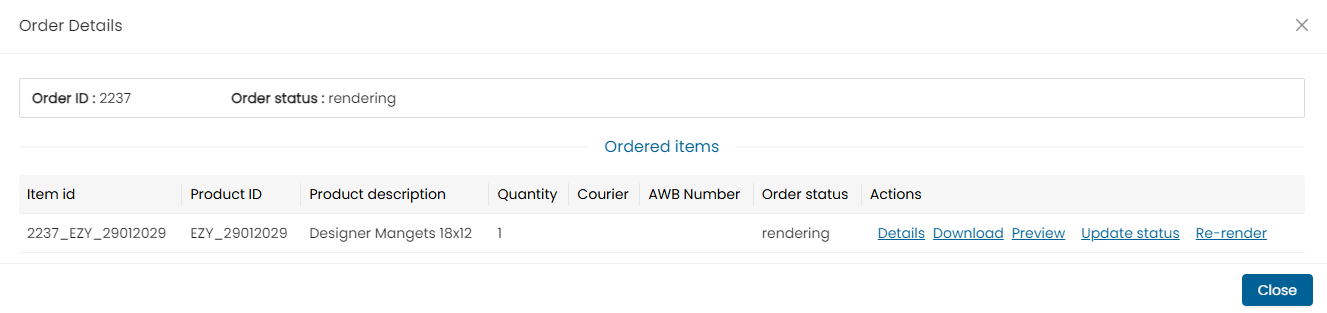
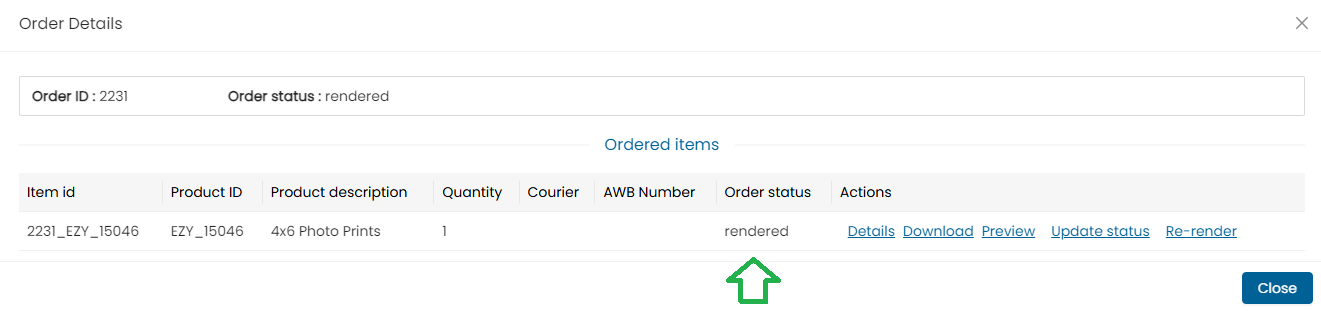
- Click on the ‘view” order details option
-
Once the test order is placed the order will be rendered by the renderer application, and it will be available in the order screen
-
Check the order status.
-
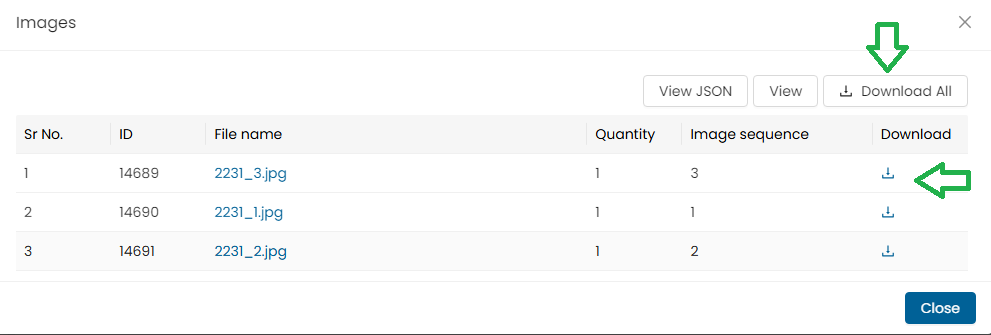
Once the status is shown as rendered, you can download the order images.
-
Orders can be downloaded using the “Download all” button or you can individually also download single images.
Note : In case of multiple images, users can either download a single image or click on the “Download All” button to download all the images at once
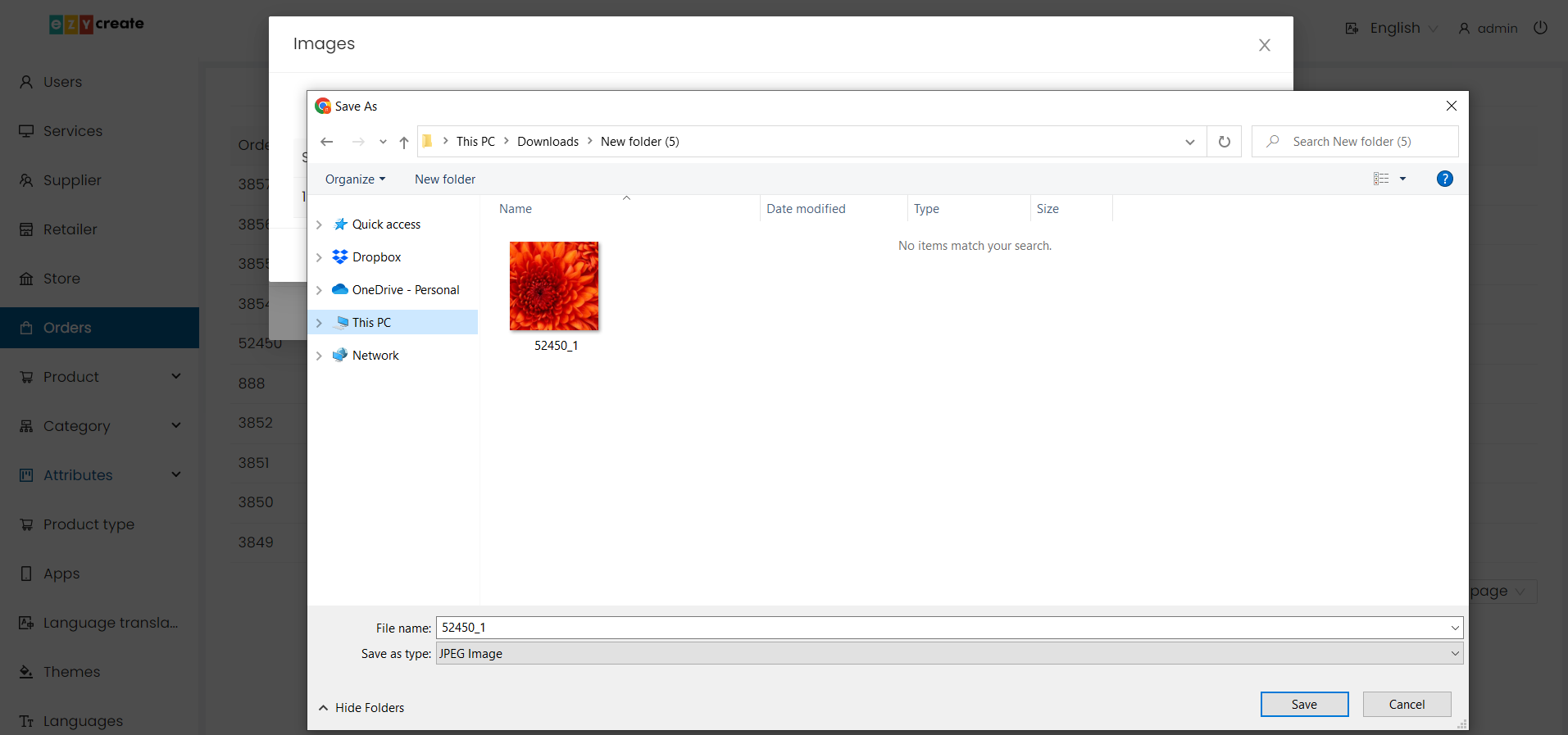
- Select a path to save the test order image.
- Click on the save button.
- The image will get downloaded to the selected location.
- If the order is downloaded using the “Download all” button than a zip file will be downloaded.
The downloaded image can be either sent to the printer for printing or it can be mailed to anyone who can print it.
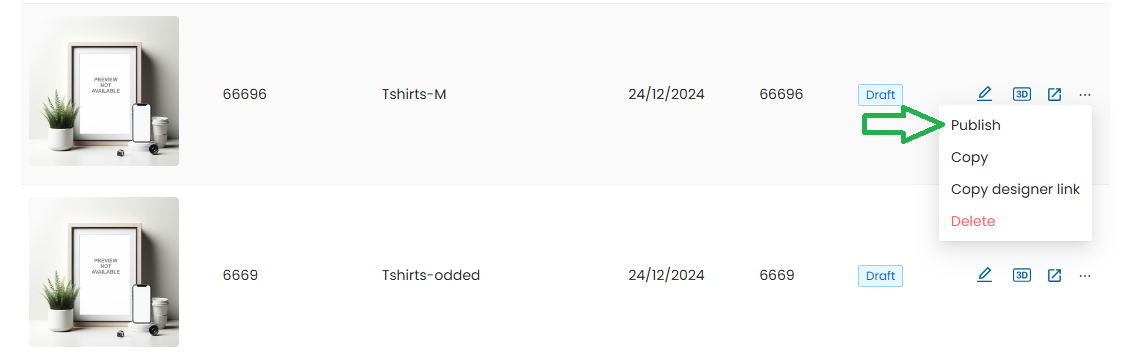
- Once the order test is passed and the product is ready to be published.
- Go to the product blank dashboard.
- Click on the product setting button from the product blank dashboard.
- Click on the “Publish” button.

- The product status will be updated as “Publish”.
- Once the Product is Published & Templates are Published, Product Blank Specs Cannot be Changed.